
Introduction
WordPress powers more than 40% of all websites on the internet, making it the world’s most popular content management system (CMS). Its popularity is one of its biggest strengths—but it also makes WordPress a favorite target for hackers, malware distributors, and cybercriminals.
The good news? Most WordPress security incidents are preventable. A properly secured website can resist the majority of common attacks, including brute-force login attempts, malware infections, SQL injection, and cross-site scripting (XSS).
Whether you run a personal blog, an online store, a business website, or a membership platform, following a comprehensive WordPress security checklist is essential for protecting your data, visitors, and reputation.
This guide walks you through the most important WordPress security best practices with practical examples and actionable tips.
Why WordPress Security Matters
Website security is about much more than preventing hackers from accessing your site.
A security breach can result in:
- Loss of customer trust
- Website downtime
- Stolen customer information
- SEO ranking penalties
- Google blacklisting
- Financial losses
- Expensive recovery costs
For example, imagine an online store that gets infected with malware during a holiday sale. Customers may be redirected to malicious websites, payments could fail, and Google may display a “This site may be hacked” warning. Recovering from such an incident can take days or even weeks.
Fortunately, prevention is much easier than recovery.
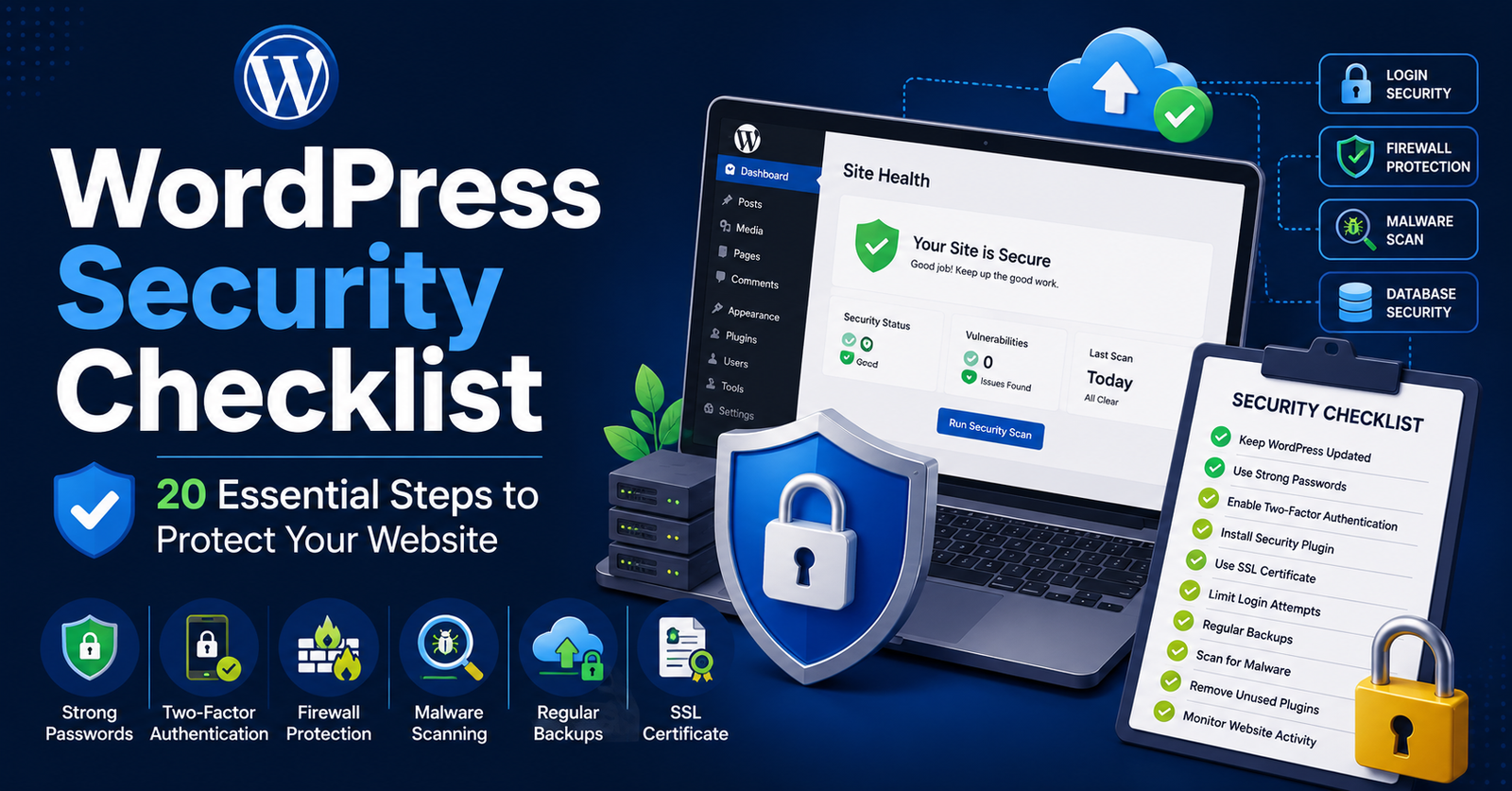
WordPress Security Checklist Keep WordPress Updated
One of the simplest yet most effective security measures is keeping WordPress updated.
Updates include:
- Security patches
- Bug fixes
- Performance improvements
- Compatibility updates
Always update:
- WordPress Core
- Themes
- Plugins
If possible, enable automatic updates for trusted plugins and minor core releases.
Use Strong Login Credentials
Weak passwords remain one of the leading causes of hacked WordPress websites.
Avoid passwords like:
- password123
- admin123
- qwerty
Instead, create passwords that include:
- Uppercase letters
- Lowercase letters
- Numbers
- Special characters
Example:
M#8pL!29vQ@x2026
Even better, use a password manager to generate and store secure passwords.
Never Use “admin” as Your Username
Many attackers launch automated brute-force attacks targeting the default username admin.
Choose a unique administrator username such as:
- david_admin
- siteowner2026
- wpmanager
Changing the default username immediately reduces automated login attacks.
Enable Two-Factor Authentication (2FA)
Two-factor authentication adds another layer of protection.
Even if someone steals your password, they still need a verification code from your phone or authentication app.
Popular plugins include:
- Wordfence Login Security
- Solid Security (formerly iThemes Security)
- miniOrange 2FA
This single feature can prevent many account compromises.
Install a Trusted Security Plugin
Security plugins automate many protection tasks.
Popular WordPress security plugins include:
- Wordfence Security
- Sucuri Security
- Solid Security
- All-In-One WP Security
These tools offer:
- Malware scanning
- Firewall protection
- Login security
- File monitoring
- Security alerts
Choose only one complete security plugin to avoid conflicts.
Use a Reliable Web Hosting Provider
Website security starts with your hosting company.
A quality host should provide:
- Web Application Firewall (WAF)
- Malware scanning
- Daily backups
- DDoS protection
- Server monitoring
- Automatic updates
Managed WordPress hosting providers often include many security features by default.
Install an SSL Certificate
Every modern website should use HTTPS.
An SSL certificate:
- Encrypts visitor data
- Protects login credentials
- Improves SEO
- Builds customer trust
Browsers now label non-HTTPS websites as “Not Secure,” which can reduce visitor confidence.
Most hosting providers offer free SSL certificates through Let’s Encrypt.
Create Regular Website Backups
Backups are your safety net.
If your website becomes infected or accidentally breaks, a backup lets you restore everything quickly.
Back up:
- Files
- Database
- Media uploads
- Themes
- Plugins
Reliable backup plugins include:
- UpdraftPlus
- BlogVault
- Duplicator
- Jetpack Backup
Store backups offsite using cloud storage like Google Drive or Dropbox.
Limit Login Attempts
Hackers often use bots to guess passwords.
Limiting login attempts blocks repeated failed logins.
Example:
Allow only five failed attempts before temporarily locking the IP address.
Many security plugins include this feature.
Use a Web Application Firewall (WAF)
A firewall filters malicious traffic before it reaches your website.
It protects against:
- SQL injection
- Cross-site scripting
- Brute-force attacks
- Malicious bots
Cloud-based firewalls like Sucuri and Cloudflare also improve website performance.
Remove Unused Plugins and Themes
Unused plugins and themes increase your attack surface.
Delete anything you no longer use.
Even inactive plugins can contain security vulnerabilities.
Keep only:
- Active theme
- Necessary plugins
- One default WordPress theme for troubleshooting
Download Themes and Plugins from Trusted Sources
Avoid “nulled” or pirated plugins.
These often contain:
- Malware
- Hidden backdoors
- Spam links
- Cryptocurrency miners
Always download software from:
- WordPress.org
- Official developer websites
- Reputable marketplaces
Saving money on premium plugins is never worth compromising your website.
Change the Default Database Prefix
During installation, WordPress uses the prefix:
wp_
Changing this prefix makes automated SQL injection attacks more difficult.
Many installers now allow custom prefixes during setup.
Disable File Editing
By default, administrators can edit plugin and theme files directly from the dashboard.
If an attacker gains admin access, they can inject malicious code.
Disable file editing by adding this to wp-config.php:
define(‘DISALLOW_FILE_EDIT’, true)
Set Proper File Permissions
Incorrect file permissions create security risks.
Recommended permissions:
- Files: 644
- Directories: 755
- wp-config.php: 600 or 640 (depending on hosting)
Avoid using permission 777.
Scan Your Website Regularly
Regular malware scans help detect infections early.
Security plugins can automatically scan for:
- Malware
- Modified files
- Suspicious code
- Backdoors
Schedule scans weekly—or daily for business websites.
Monitor User Accounts
Review all WordPress users regularly.
Remove:
- Inactive accounts
- Former employee accounts
- Unused administrator accounts
Follow the principle of least privilege.
For example:
- Editors should not be administrators.
- Authors should not manage plugins.
Protect Against Spam
Spam comments can contain malicious links.
Reduce spam using:
- Akismet
- CAPTCHA
- Comment moderation
- reCAPTCHA
This keeps your website professional and protects visitors.
Monitor Website Activity
Activity logs help identify suspicious behavior.
You can monitor:
- Login attempts
- Plugin installations
- File changes
- User actions
- Failed logins
Plugins like WP Activity Log provide detailed tracking.
Perform Regular Security Audits
Security isn’t a one-time task.
Review your website monthly by checking:
- Plugin updates
- User accounts
- Backups
- Firewall settings
- Malware scans
- Broken links
- Hosting security reports
A monthly audit helps catch small issues before they become serious problems.
Latest WordPress Security Trends in 2026
Cybersecurity continues to evolve, and WordPress website owners should stay informed.
AI-Powered Threat Detection
Modern security platforms use artificial intelligence to detect suspicious behavior faster than traditional rule-based systems.
Passwordless Authentication
Many websites are adopting passkeys and passwordless login methods to reduce credential theft.
Zero Trust Security
Instead of assuming trusted users are safe, Zero Trust verifies every access request.
Cloud-Based Firewalls
Cloud security services block attacks before they reach your hosting server, improving both security and performance.
Automated Vulnerability Monitoring
Many premium security services now monitor plugin vulnerabilities in real time and notify administrators immediately when updates are available.
Common WordPress Security Mistakes
Avoid these common errors:
- Ignoring software updates
- Using weak passwords
- Installing too many plugins
- Downloading pirated themes
- Not creating backups
- Giving everyone administrator access
- Forgetting SSL
- Ignoring security warnings
- Leaving unused plugins installed
Most successful attacks exploit these simple mistakes rather than advanced hacking techniques.
Frequently Asked Questions (FAQs)
1. How often should I update WordPress?
You should install security updates as soon as they are available. Check for plugin, theme, and core updates at least once a week if automatic updates are not enabled.
2. What is the best WordPress security plugin?
Popular choices include Wordfence, Sucuri Security, Solid Security, and All-In-One WP Security. The best option depends on your website’s needs, budget, and preferred features.
3. Is WordPress secure enough for business websites?
Yes. WordPress is highly secure when properly maintained with regular updates, strong passwords, security plugins, backups, and a reliable hosting provider.
4. Can free security plugins protect my website?
Yes. Many free security plugins provide excellent protection against common threats. Premium versions usually add advanced firewall rules, malware cleanup, and real-time threat intelligence.
5. What should I do if my WordPress site gets hacked?
Immediately put your site into maintenance mode, restore a clean backup if available, change all passwords, scan for malware, update WordPress and plugins, remove malicious code, and notify your hosting provider if needed.
Conclusion
Website security is an ongoing responsibility rather than a one-time setup. By following this WordPress security checklist, you significantly reduce the risk of malware infections, hacking attempts, data theft, and costly downtime.
Start with the fundamentals—keeping WordPress updated, using strong passwords, enabling two-factor authentication, and creating regular backups. Then strengthen your defenses with a trusted security plugin, a web application firewall, SSL encryption, and routine security audits.
As cyber threats continue to evolve, staying proactive is the best way to safeguard your website, protect your visitors, and maintain your search engine rankings. A secure WordPress site not only prevents attacks but also builds trust, improves performance, and supports the long-term success of your online presence.
